Our Location
304 North Cardinal St.
Dorchester Center, MA 02124


Every WordPress site uses the same default login address: /wp-login.php. Bots that run brute force attacks don’t have to search for it. They already know exactly where it lives.
That’s not a flaw specific to your site. It’s true of every WordPress install by default, which is exactly why automated login-page scanning is so widespread across the web.
Changing your login URL to something unpredictable closes that gap in under a minute. This guide walks through doing it with BruteFort’s Custom Login URL feature, picking a slug that’s actually secure, and pairing it with rate limiting for full coverage.
Quick Answer: In BruteFort, go to Settings → Custom Login URL, toggle it on, enter a slug that isn’t “login,” “admin,” or your brand name, and click Save. Test the new URL in a private window before closing your current admin session — the default /wp-login.php will return a 404 afterward.
Automated bots scan IP ranges and domain lists looking for known WordPress paths. Finding /wp-login.php confirms a WordPress installation and marks the site for credential testing. This scanning happens around the clock, and it targets sites of all sizes — a personal blog with ten visitors a day gets the same automated probing as a high-traffic WooCommerce store.
Hiding your login page doesn’t replace rate limiting — you should have both — but it stops the attack before it even starts. A bot that can’t find your login form can’t submit credentials to it. It’s the difference between locking your door and making the door invisible.
BruteFort’s Custom Login URL feature is built specifically for this. Here’s how to set it up:
https://yoursite.com/your-slug. Pick something unpredictable — not “login,” “admin,” or “wp,” as these are commonly scanned too.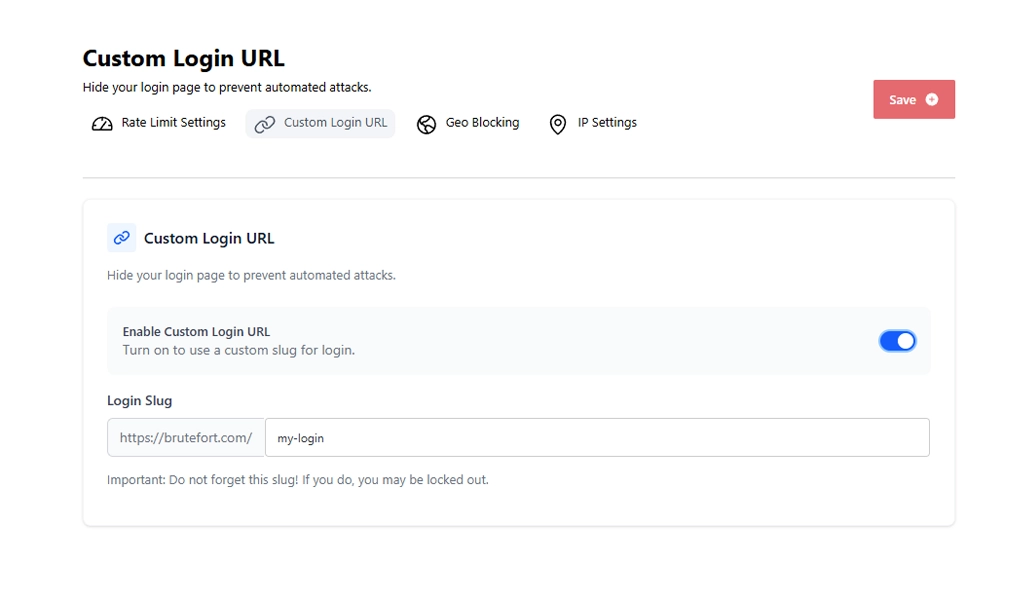
Important: Write down your custom slug before saving. Once the change is active, the default /wp-login.php URL will return a 404. If you forget the slug, you may be locked out of your own site.
After saving, test the new URL in a private browsing window before closing your current admin session. Confirm /wp-login.php now returns a 404, and your new URL loads the login form correctly.
A good custom login slug is unpredictable but easy for you to remember. Avoid:
login, admin, dashboard, signin, access — these are included in scanner wordlistsSomething like my-panel-2024 or a short phrase meaningful to you but not publicly associated with your site works well. The goal is unpredictability, not complexity.
A custom login URL is a strong first layer — it eliminates the bulk of automated bot traffic that targets the default /wp-login.php path. But it isn’t the only layer you need. An attacker who discovers your custom URL through other means — a leaked link, a sitemap, or an exposed admin menu — can still attempt logins against it.
BruteFort’s rate limiting applies to your custom login URL as well as the default path. With both enabled, your login page is both hidden from automated scanners and rate-limited against anyone who does find it.
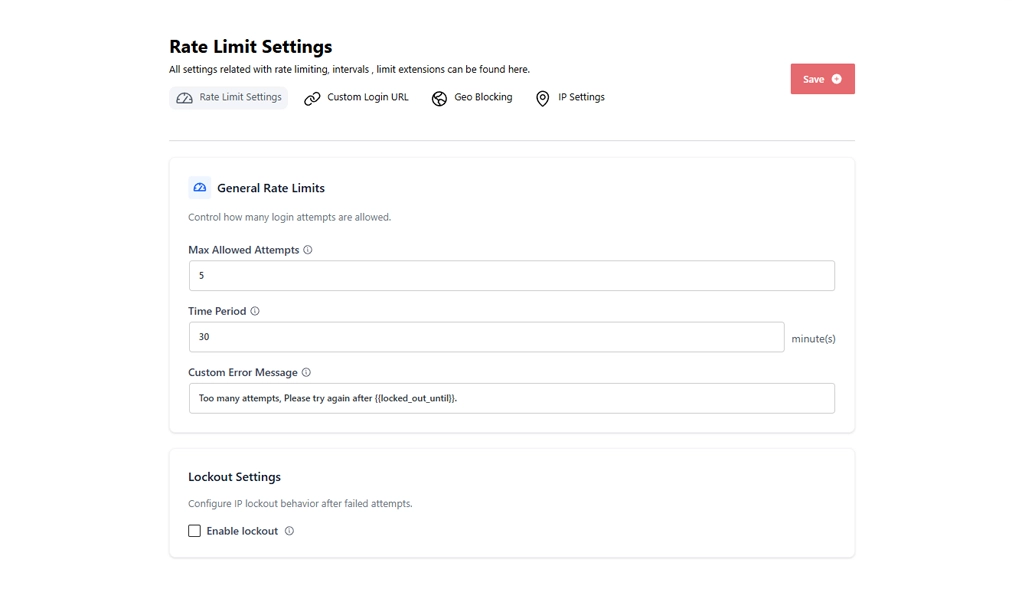
That combination covers the vast majority of WordPress login attack scenarios without any ongoing maintenance.
No. Changing the login URL with BruteFort doesn’t touch your theme, content, or WordPress database structure. It simply redirects login requests to the new path and returns a 404 for the old one. Plugins that link directly to /wp-login.php in their admin interfaces may need their settings updated, but this is uncommon for well-maintained plugins.
If you forget the slug and can’t access your admin, you can recover it via FTP or your hosting file manager. Connect to your site, open the WordPress database via phpMyAdmin, and look in the wp_options table for the BruteFort login slug option. Alternatively, deactivating the BruteFort plugin via FTP (by renaming its plugin folder) will restore the default login URL temporarily.
Yes. WooCommerce, most membership plugins, and other tools that use WordPress’s authentication system will use your new login URL automatically. The WordPress authentication system itself hasn’t changed — only the URL that reaches it. Custom login page plugins that create entirely separate login interfaces may need separate configuration.
It stops the automated bots that target the default path — which is the source of most WordPress login attack volume. It doesn’t stop a targeted attacker who already knows your custom URL. That’s why combining it with BruteFort’s rate limiting is the recommended approach: the custom URL stops mass scanning, and rate limiting stops anyone who finds the URL from attempting more than a handful of credentials.
Changing your WordPress login URL is a 60-second setup that eliminates a huge proportion of automated attack traffic. BruteFort handles it from the Custom Login URL tab — no code required, no server configuration needed.
You might also like:

