Our Location
304 North Cardinal St.
Dorchester Center, MA 02124


Your WordPress site just threw a PHP error, and you’re staring at a wall of text you don’t fully understand. Is it urgent? Can it wait? Did it just break your site for every visitor?
You’re not alone — most site owners never learn the difference between a fatal error, a warning, and a notice, because WordPress rarely explains it. Once you know the four error types, reading your log takes minutes instead of guesswork.
Quick Answer: A fatal error breaks your page immediately and needs fixing now. A warning means something ran but misbehaved. A notice and a deprecated notice are low-urgency code-quality flags. Below is how to tell them apart and fix each one.
Most of these errors happen silently. Unless you have debugging enabled, WordPress won’t display them — they accumulate in a log file that most site owners never look at, while the underlying issue quietly gets worse.
A PHP fatal error stops execution entirely. The page fails to load, and visitors typically see a white screen, a generic server error, or (if display errors are on) a raw error message.
Fatal errors are almost always caused by a plugin or theme calling a function that doesn’t exist, a syntax error in custom code, or a class conflict between two plugins. In your log, a fatal error looks like this:
PHP Fatal error: Uncaught Error: Call to undefined function some_plugin_function() in /wp-content/plugins/some-plugin/some-file.php:42The file path and line number tell you exactly where the problem is. A plugin update, a PHP version incompatibility, or a missing dependency is usually the cause.
A PHP warning means the code ran, but something unexpected happened. The page usually loads, but some functionality may be broken or behaving incorrectly.
Common causes include a plugin trying to include a file that doesn’t exist, a function receiving a variable of the wrong type, or a database query returning something unexpected. Warnings are often symptoms of plugin conflicts rather than outright code bugs. They’re worth investigating even when the visible impact seems minor.
Notices are the most common entries in a WordPress debug log. They flag things like an undefined variable or a value that had to be guessed at.
A notice won’t break anything today. But a site running hundreds of them is accumulating technical debt that will cause a fatal error the next time PHP updates.
These are a subset of notices specifically flagging functions that WordPress or PHP has marked for removal. When a plugin still calls wp_get_user_contact_methods() after it’s been deprecated, for example, you’ll see a deprecated notice.
These are low urgency individually, but a plugin generating dozens of them is a signal it hasn’t been well-maintained.
Plugin or theme updates are the most frequent trigger. A plugin that was working fine can introduce a fatal error after an update if the new version has a bug or conflicts with another plugin. This is why keeping a log — and checking it after updates — is valuable.
PHP version changes are another major source. If your host upgrades PHP and a plugin uses functions removed in the new version, you’ll start seeing fatal errors. Logmate’s System Info screen shows your current PHP version so you can cross-reference it against plugin compatibility notes.
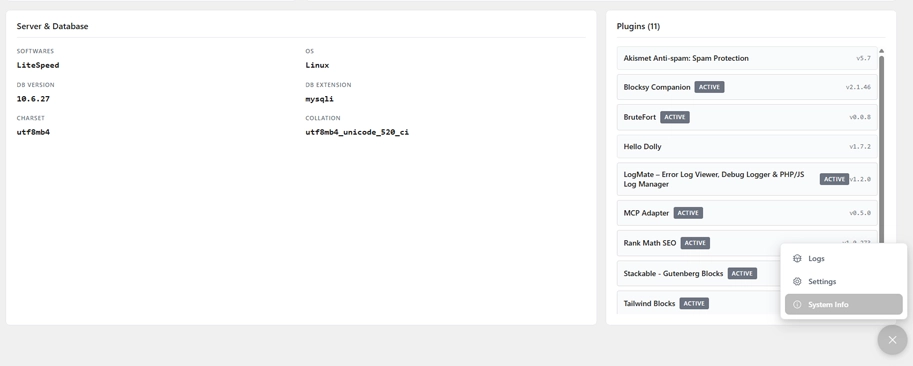
Custom code — snippets added via a code plugin or directly to functions.php — is the other common culprit. A small syntax error anywhere in that file can take down the entire site.
First, enable the debug log if it isn’t already on. Add these to wp-config.php:
define( 'WP_DEBUG', true );
define( 'WP_DEBUG_LOG', true );
define( 'WP_DEBUG_DISPLAY', false );
Once enabled, errors write to /wp-content/debug.log. Reading that file directly means SSH or FTP access every time.
Logmate handles this from inside the WordPress admin. The Logs screen shows every PHP error with its type, message, source file, occurrence count, and last occurrence time. You can filter by PHP errors specifically, search by message or file path, and export the log if you need to share it with a developer.
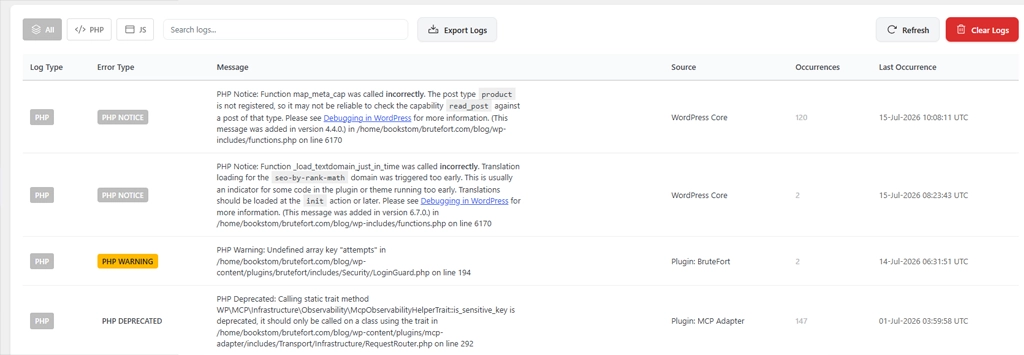
Pro Tip: Watch the occurrence count. An error that happened once might be a one-off. An error that’s occurred 847 times in the last 24 hours is something actively breaking your site.
They can. Errors that trigger on every page load add overhead to each request. High-volume deprecated notices and warnings mean PHP is doing extra work on every visit. On a busy site, fixing a flood of repeated errors can result in a measurable performance improvement.
If a fatal error has locked you out of the dashboard, the fastest fix is to deactivate the problem plugin via FTP — rename the plugin’s folder in /wp-content/plugins/ and WordPress will automatically deactivate it. Then re-enable debug logging, restore the folder name, and check the log to confirm the error is gone before reactivating.
Yes. Logmate is free to install from the WordPress plugin repository. It includes the full log viewer, PHP and JavaScript error capture, auto-refresh, log export, and the retention/purge controls.
Logmate can simplify enabling and managing the debug settings, but WP_DEBUG and WP_DEBUG_LOG still need to be active for WordPress to generate the log file. Without those constants set, there’s no log for Logmate — or anything else — to read.
PHP errors are often the first sign of a deeper problem — a plugin conflict, a bad update, or a PHP version mismatch that’s been quietly building. Logmate makes them visible from inside your WordPress dashboard, so you catch them before they cause something worse.
You might also like:

