Our Location
304 North Cardinal St.
Dorchester Center, MA 02124

You only remember WordPress maintenance exists the moment something breaks. That’s normal — most site owners treat it as a fire drill instead of a routine, because nobody ever handed them a checklist to follow.
This one takes about 30–45 minutes a month and covers the two categories that matter most: login security and error monitoring. It’s built around two free plugins, BruteFort and LogMate, so every check below maps to a specific screen you can open right now.
Quick Answer: Each month, update everything, review your BruteFort login logs, confirm your login protection settings are still active, audit your admin users, verify your backup actually works, then check your LogMate error logs for new PHP and JS errors and purge the log if it’s grown large. That’s the whole routine.
BruteFort’s dashboard covers several of the items below — logs, lockouts, and login rules all live in one place.
This is the single highest-impact maintenance task. Most WordPress compromises exploit vulnerabilities in outdated plugins and themes. Run updates monthly at minimum — weekly if you run a lot of third-party plugins.
Important: confirm you have a recent backup before updating. After updating, check your error log for new PHP errors — they’re common after updates and usually point to a plugin conflict that’s easy to fix if you catch it early.
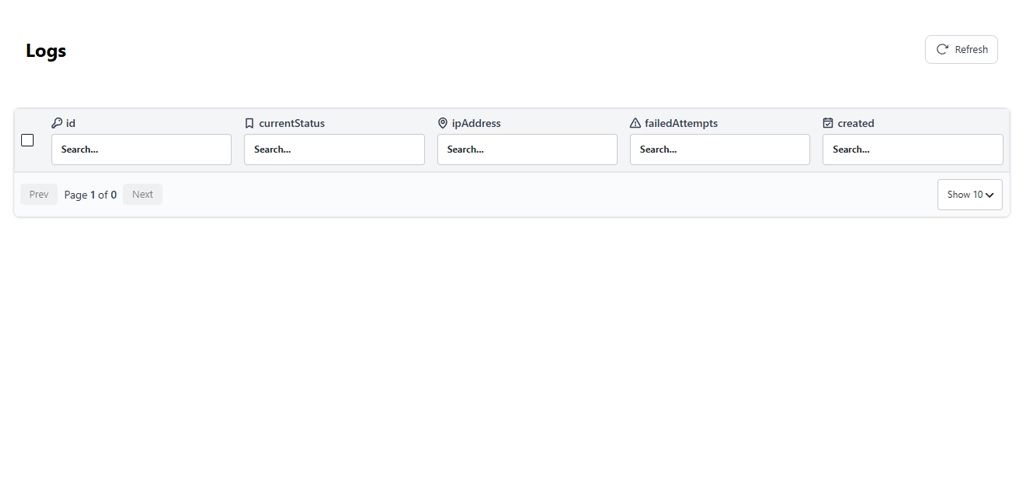
Open BruteFort → Logs and review lockout events from the past month. Look for IPs that show up across multiple separate lockouts — those are persistent attackers worth moving to the permanent blacklist.
A sudden spike in lockout volume that’s new this month suggests an active campaign targeting your site. Regular log review turns the audit trail into something actionable instead of just a record of what happened.
Confirm BruteFort’s rate limiting is still enabled. Test your custom login URL in a private browser window to make sure it’s still working.
Check that your IP whitelist entries are current, too. IP addresses change — if your office or home IP has changed since you last added it, update it now, before you tighten any lockout settings. Also confirm geo blocking is still configured if you had it enabled, since settings can occasionally reset after a plugin update.
Go to Users in your WordPress dashboard and review every admin-level account. Remove old contractor accounts, test accounts, or anything you don’t recognize.
Warning: creating a backdoor admin account is one of the first things an attacker does after gaining access. If you spot one you didn’t create, treat it as a potential compromise and investigate immediately.
Confirm your backup plugin or hosting backup is running and completing successfully. Check that the last backup finished without errors and that files are actually being stored offsite.
A backup that silently fails for three months is no backup at all. So restore a small file from it periodically, just to confirm it’s actually usable.
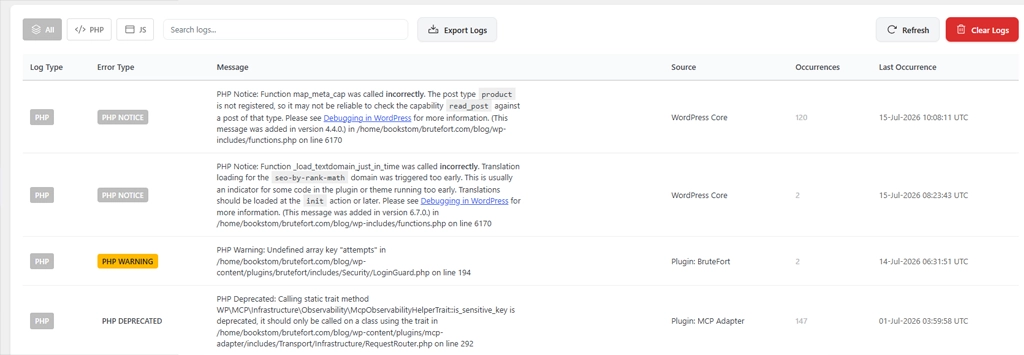
Open LogMate → Logs and filter by PHP errors. Sort by occurrence count — the highest-frequency entries are where you should start.
Prioritize new errors that appeared this month, especially ones that coincide with an update. An error that happens on every page load points to an ongoing problem affecting all visitors; one that happened once and hasn’t recurred is lower priority.
Pro Tip: watch for deprecated function notices. They’re low-urgency individually, but a plugin generating hundreds of them is likely unmaintained and becoming a compatibility risk as PHP and WordPress versions advance.
Filter LogMate’s Logs to show JavaScript errors. These never appear in the PHP debug log and stay completely invisible unless LogMate’s JS error capture is enabled.
High-occurrence JS errors on checkout flows, contact forms, or interactive menus directly hurt conversions. A monthly check catches these before they’ve been silently broken for weeks.
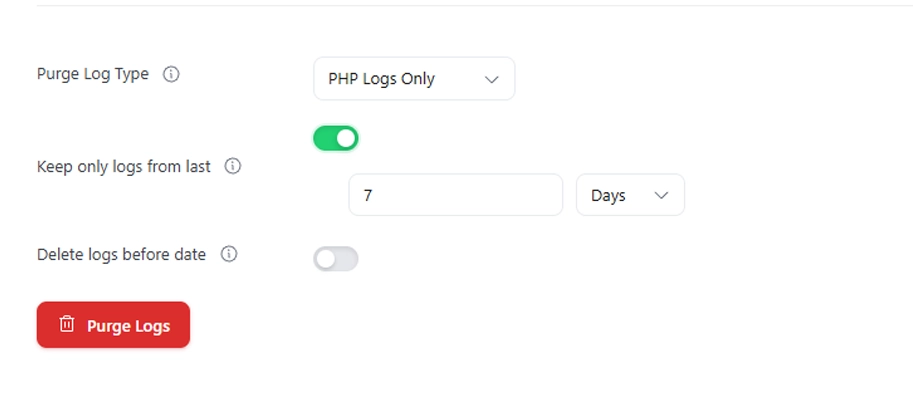
Go to LogMate’s System Info screen and check the current size of your PHP log and JS log. If either has grown significantly, run a purge from LogMate’s settings to clear entries older than your retention window.
A log file growing rapidly usually means a plugin is generating repeated errors. Identify it from the high-occurrence entries and fix it at the source.
Check LogMate’s System Info screen for your current PHP version and compare it against your plugins’ compatibility requirements. Hosts sometimes upgrade PHP without much notice.
A version bump from 8.1 to 8.2, for example, can introduce new deprecated function notices or, in poorly maintained plugins, outright compatibility breaks. Catching this at the monthly review beats discovering it when a plugin stops working.
Every quarter, add these to your routine. Remove any unused plugins and themes — an inactive plugin with an unpatched vulnerability is still exploitable.
Test your custom login URL from a fresh browser to confirm it still works. Check Google Search Console for new security alerts or manual actions. Then run a full database optimization to keep query performance healthy as your tables grow.
For a well-configured site with no outstanding issues, 30–45 minutes covers updates, log review, backup verification, and error checking. A site with a high volume of errors or an incident to investigate will take longer — but the routine itself is what catches those situations early, before they escalate.
Managed hosts handle server-level maintenance, and some handle core WordPress updates automatically. They don’t handle plugin and theme updates, your login security configuration, or your error log monitoring — those stay your responsibility. The checklist above still applies; some items may already be covered depending on your host.
A dashboard like MainWP or ManageWP lets you run updates and check backup status across multiple sites from one place. For error log and security log review, though, you still need to check each site individually through LogMate and BruteFort — that’s just the nature of site-specific diagnostic data. Once you know what you’re looking for, each site takes 5–10 minutes.
WordPress maintenance is an investment in stability. The time you spend on monthly checks is a fraction of what you’d spend recovering from a compromised site or diagnosing an error that’s quietly hurt visitors for weeks. BruteFort handles the login security layer and LogMate handles error visibility — together they make the security and monitoring parts of this checklist fast and actionable.
You might also like:

