Our Location
304 North Cardinal St.
Dorchester Center, MA 02124


One client site gets hit with a login attack and suddenly it’s your agency fielding the panicked email, not the client’s problem to solve alone. That’s the reality of managing WordPress security at scale — every incident reflects on you, whether you’re running 5 sites or 50.
The fix isn’t more vigilance per site. It’s a baseline configuration that’s efficient to deploy, consistent across every site, and manageable without a support ticket every time something needs adjusting.
Quick Answer: Standardize four things on every client site — rate-limited login attempts, a custom login URL, your agency’s whitelisted IP, and geo blocking where the client’s audience is geographically defined. BruteFort covers all four from one settings panel, and LogMate adds the error visibility to diagnose issues remotely.
A successful login attack is the most common security incident on client WordPress sites. Clients set weak passwords. They reuse credentials from other sites that have already been breached. They never change the default admin username.
And almost no WordPress site ships with rate limiting on login attempts. So a bot can try credentials indefinitely, with zero pushback from WordPress itself.
The second most common source of client site compromises is outdated plugins and themes — vulnerabilities that get patched in updates nobody installed. Both failure modes are preventable with discipline and the right baseline.
Install BruteFort once and these become a five-minute setup per client site.
Install BruteFort on every client site as a baseline. Set max login attempts to 5 per 30 minutes, then configure a clear custom error message using the {{locked_out_until}} variable so locked-out users know exactly when they can retry.
This stops brute force attacks outright and slows credential stuffing to the point of impracticality. Five minutes of setup per site, permanent protection.
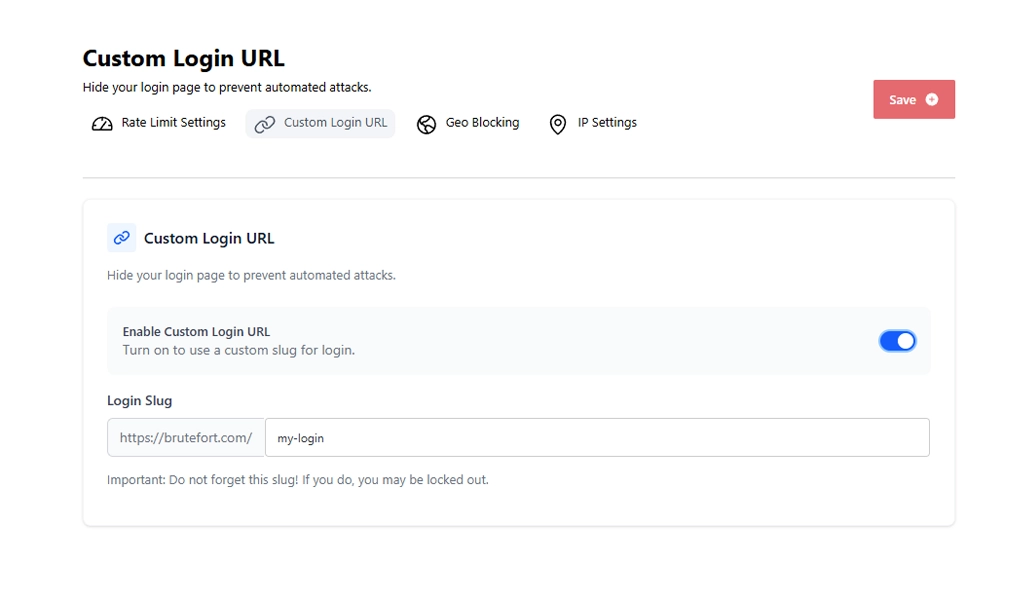
Changing the login URL from the default /wp-login.php removes the site from automated bot sweeps that target WordPress specifically. BruteFort’s Custom Login URL makes this a one-toggle setup.
Use a slug that’s consistent enough for your workflow but unique enough per site that it’s not guessable. Keep a record of each client site’s slug in your project management tool or password manager.
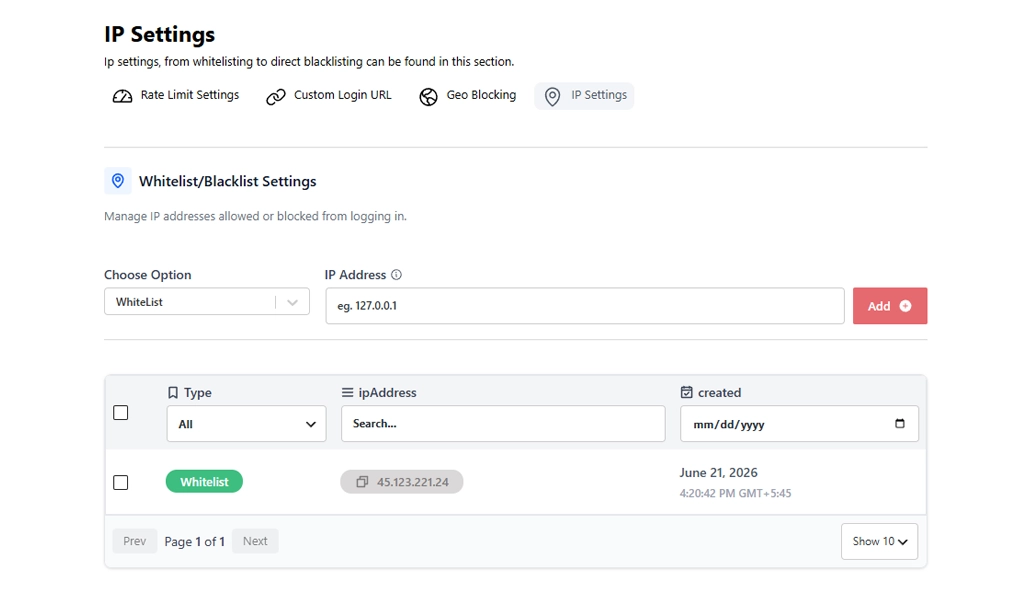
Before enabling any aggressive lockout settings, add your own IP — and your team’s — to the whitelist in BruteFort’s IP Settings. This is the single most important operational step.
It means no matter how strict the rate limiting gets on a client site, you’ll never accidentally lock yourself out mid-maintenance. If you work from a static IP or a business VPN with a fixed IP, this is a one-time setup per site.
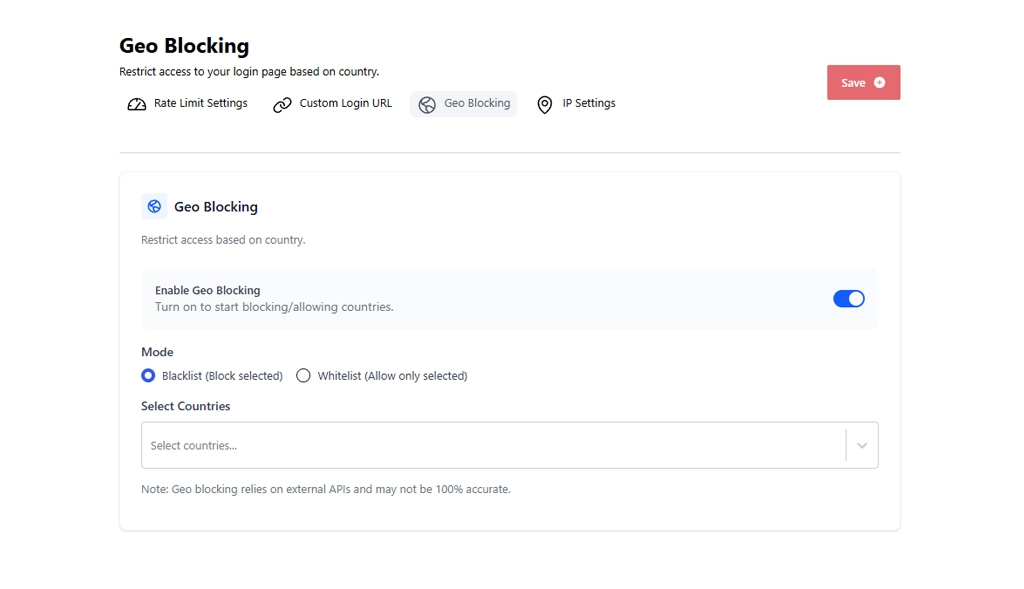
For local businesses, regional membership sites, or any client whose users cluster in specific countries, BruteFort’s Geo Blocking whitelist mode is highly effective. If a plumbing company in Manchester has no users outside the UK, blocking login access from every country except the UK eliminates most automated attack traffic with a single setting.
Note: discuss this with the client before enabling it. Some clients travel or have remote staff in unexpected locations, and you don’t want to lock out a legitimate user by accident.
Warning: enabling aggressive rate limiting without whitelisting your own IP first is the most common self-inflicted problem. Always whitelist first, then configure restrictions — never the other way around.
Note: if a client’s login URL is still the default /wp-login.php at handover, that gap will exist indefinitely. Make the custom URL part of your handover checklist and document the new URL alongside the credentials.
Pro Tip: clients forget passwords and lock themselves out. Make sure someone on your team can access the WordPress database via phpMyAdmin to retrieve the custom login URL, or deactivate BruteFort temporarily via FTP if a genuine lockout occurs. Document this in your support runbook.
Alongside login protection, install LogMate on client sites you maintain actively. Having PHP and JavaScript error logs accessible from the dashboard means you can check what’s happening on a client site remotely — without asking the client to describe what they’re seeing or digging through your hosting account.
When a client reports that “something isn’t working,” LogMate’s Logs screen often shows the exact PHP error or JavaScript failure causing it before you’ve even asked a follow-up question.
Using the same slug everywhere is operationally convenient but reduces the security benefit once that slug becomes known. A practical middle ground is a small set of slugs rotated across sites, or a site-specific slug that’s easy for you to remember but not guessable from the domain name alone.
First, confirm whether it’s a rate limit lockout (temporary, clears after the window expires) or a permanent blacklist entry (requires manual removal). If it’s a rate limit lockout, have the client wait it out or try from a different IP. If their IP was blacklisted by mistake, remove it from BruteFort’s IP Settings table. If they’ve forgotten the custom login URL, retrieve it from BruteFort’s settings or the WordPress database options table.
Check BruteFort’s WordPress.org plugin page for current multisite compatibility, since this can vary across versions. For single-site client installations, BruteFort is fully compatible and covers the standard WordPress login endpoint used by all single-site setups.
At minimum: install BruteFort and configure rate limiting, set a custom login URL and document it, whitelist your agency’s IP(s), install LogMate for error visibility, make sure plugins and themes are updated, set strong unique admin passwords, and confirm the site has automated backups. This baseline covers the vast majority of practical security risks on a typical client WordPress site.
Login security on client sites is an agency responsibility, not an optional extra. BruteFort and LogMate together cover the two most common client site failure modes — login attacks and undetected errors — for free, with minimal ongoing management overhead.
You might also like:

