Our Location
304 North Cardinal St.
Dorchester Center, MA 02124

Rate limiting, geo-blocking, and IP rules each stop a different kind of login attack. Running all three together is genuinely the strongest free setup available for a WordPress login page.
It’s also the setup people most often get wrong. The three rules can contradict each other, and the most common failure mode is locking out the site owner, not the bots.
This is a configuration guide, not a feature list: the order to set these up in, the specific settings that cause self-lockouts, and how to recover if it happens anyway.
The three layers aren’t redundant – each one closes a gap the others miss.
Together they cover volume attacks, regional bot farms, and known threats in one pass. Configured in the wrong order, they also cover you – the admin trying to log in from a hotel Wi-Fi in another country during rate-limit testing.
BruteFort runs all three layers from one settings panel – the rest of this guide shows how to configure them together without locking yourself out.
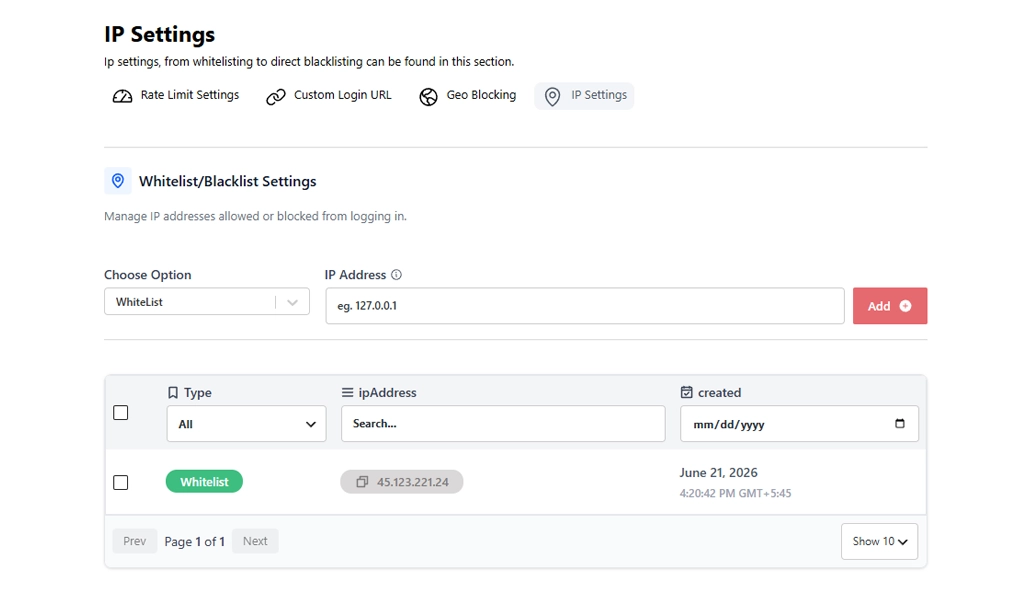
Before touching rate limiting or geo-blocking, add your own IP address (and anyone else who administers the site) to the IP whitelist. Whitelisted IPs bypass rate-limit lockouts and geo-blocking rules entirely – exactly what you want while you’re actively configuring the other two layers.
If your IP changes regularly (many home and mobile connections do), whitelist the widest range your ISP is likely to assign. Or plan to update the whitelist entry when your IP rotates. A dynamic IP is the single most common cause of an admin accidentally locking themselves out days after setup was finished.
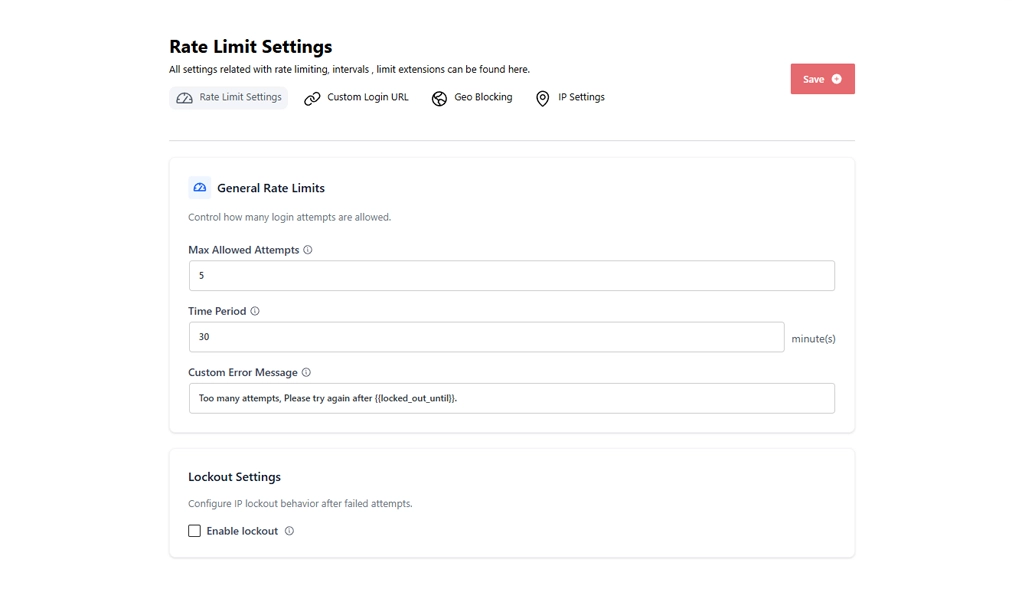
Set your failed-attempt threshold and lockout duration next, while your own access is already protected by the whitelist. A starting point that works for most sites: 5 failed attempts, 15-minute lockout.
Tighter than that, and a legitimate user who mistypes a password twice is at real risk of locking themselves out. Looser than that, and you’re not meaningfully slowing a brute-force script.
Test it from a device on your own network before moving on. Deliberately fail a login 5 times and confirm you see the lockout message, then confirm it clears after the duration you set.
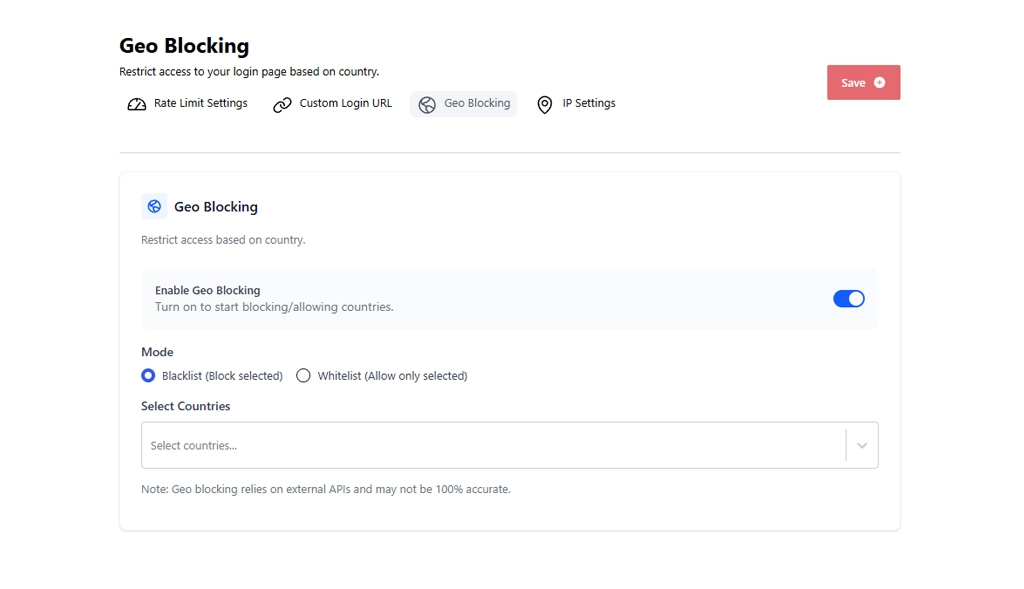
Geo-blocking is the layer most likely to lock out a legitimate person. It blocks by default rather than by behavior – it doesn’t care whether the login attempt looks like an attack, only where it came from.
Before enabling it, list every country anyone with legitimate admin access might log in from. That includes contractors, agencies, and your own travel.
Allow-list those countries rather than trying to block-list every country you’ve never heard from. It’s a shorter, safer list to maintain, and it fails safe: a new country you forgot to add gets blocked – annoying, but recoverable. A country you forgot to block staying open is a real gap.
Three specific situations cause almost every self-lockout with this combination:
If you’re locked out of wp-admin by your own rules, you still have file access via FTP or your host’s file manager – and that’s the way back in every time. Rename BruteFort’s plugin folder inside /wp-content/plugins/ to something like brutefort-disabled.
WordPress auto-deactivates any plugin whose folder it can’t find. That clears rate-limit, geo-blocking, and custom-login-URL restrictions immediately. Log back in through the default /wp-login.php, rename the folder back, and reconfigure with a wider whitelist or allow-list before re-enabling.
This is also why BruteFort deliberately doesn’t require server-level configuration – no .htaccess rules to hunt down. A plugin-level lockout is always recoverable this way, in minutes, without support access to your host.
Whitelist your own IP first, set and test rate limiting second, then add geo-blocking last. This order protects your own access before the layers most likely to lock out a legitimate admin get switched on.
They don’t conflict technically – a whitelisted IP always overrides both rate limiting and geo-blocking. But they can combine to lock out a legitimate user if the whitelist isn’t kept current, or if the geo allow-list doesn’t cover everywhere admins actually log in from.
Access your site via FTP or your host’s file manager and rename BruteFort’s plugin folder inside /wp-content/plugins/. WordPress will automatically deactivate it, clearing the lockout. Log in, rename the folder back, and reconfigure with a wider whitelist or allow-list.
Rate limiting alone stops the most common attack (automated password guessing) and is the minimum worth running. Geo-blocking and IP rules add real protection against attacks rate limiting misses, but they also add configuration risk. Add them once rate limiting is working and tested, not all three at once.

