Our Location
304 North Cardinal St.
Dorchester Center, MA 02124


You just ran your WordPress updates, and now something’s broken. A white screen, a fatal error, a page that won’t load right — whatever it is, it wasn’t there an hour ago.
This is one of the most common support questions in the WordPress world, and it happens to well-maintained sites just as often as neglected ones. Updates are supposed to improve things, but a compatibility gap between the new code and your existing plugins or theme can break something that was working fine a minute earlier.
The cause is almost always a PHP error triggered by a plugin conflict or a compatibility gap with the updated code. Here’s the exact sequence to diagnose and fix it.
Quick Answer: Check your WordPress debug log first — it usually names the exact plugin or theme file behind the error. Roll back or deactivate that plugin while you wait for a fix, and confirm your PHP version didn’t change at the same time as the WordPress update.
The WordPress debug log is your first stop. Most post-update errors are PHP fatal errors or warnings that name the exact file and line where the problem is occurring. If you already have WP_DEBUG and WP_DEBUG_LOG enabled, your log will already have entries from the moment the update triggered the problem.
If WP_DEBUG isn’t enabled yet, add this to wp-config.php above the “stop editing” line:
define( 'WP_DEBUG', true );
define( 'WP_DEBUG_LOG', true );
define( 'WP_DEBUG_DISPLAY', false );
The WordPress error log location is /wp-content/debug.log by default. To avoid navigating your server file manager every time, Logmate surfaces this log inside your WordPress admin — filterable, searchable, with timestamps and occurrence counts. When you’re dealing with post-update errors, Logmate’s auto-refresh setting (default: every 10 seconds) means you can see new log entries appearing in real time as you test.
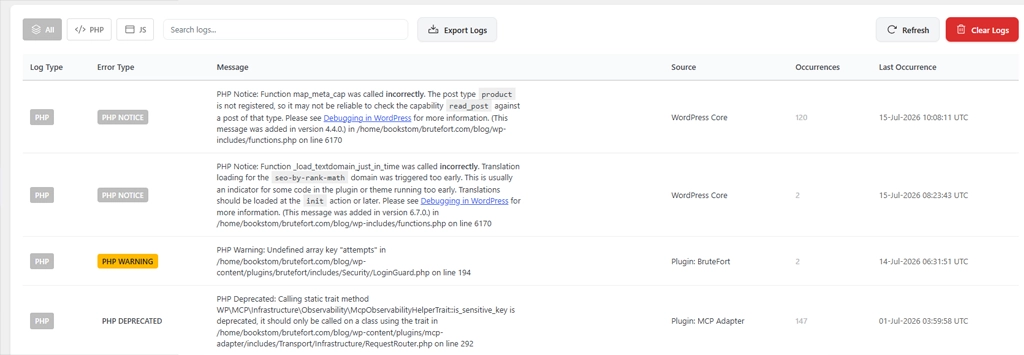
The WordPress error log entry will usually point to a file path inside /wp-content/plugins/ or /wp-content/themes/. That tells you immediately whether a plugin or theme is the culprit. If the path points to /wp-includes/ or /wp-admin/, the issue is in WordPress core — rarer, but it happens after major version updates.
Common PHP error patterns after updates include:

Once you’ve identified the plugin or theme causing the WordPress PHP errors, the fastest resolution is often rolling back to the previous version while waiting for a compatibility fix from the developer. The WordPress plugin repository doesn’t offer one-click rollbacks from the dashboard, but the free WP Rollback plugin lets you select any previous version from the plugin’s repository history and revert to it instantly.
After rolling back, check your WordPress error log again to confirm the PHP errors are gone before bringing your site fully back online.
If your host also upgraded PHP around the same time as your WordPress update, that can compound the issue. A plugin that ran cleanly on PHP 8.1 may produce fatal errors or a flood of deprecation notices on PHP 8.2 or 8.3.
Pro Tip: Logmate’s System Info screen shows your current PHP version, memory limits, and max execution time alongside your active plugin list — making it easy to cross-reference plugin compatibility requirements against your actual server environment.

Not everything that breaks after an update shows up as a PHP error. Plugin and theme updates frequently introduce WordPress JavaScript errors — a checkout button that stops working, a menu that won’t open, an admin interface element that becomes unresponsive. These don’t appear in your PHP debug log, and manually checking the browser console only shows what’s happening in your own session.
Logmate’s JS error capture records browser-side errors from all visitor sessions server-side. After a major update, checking both the PHP and JavaScript error tabs in Logmate gives you the complete picture of what the update broke.
Test updates on a staging environment before applying them to production. Most managed WordPress hosts offer staging environments with one-click cloning. Run updates on the clone first, check for PHP errors and JavaScript errors using your debug log, and only push to production once you’ve confirmed things are working. It adds ten minutes per update cycle and prevents the situation you’re currently in.
Access your site via FTP or your hosting file manager. Rename the folder of the plugin you suspect inside /wp-content/plugins/ — WordPress will auto-deactivate it. If you don’t know which plugin, rename the entire /wp-content/plugins/ folder temporarily to deactivate all plugins at once, then rename it back and reactivate plugins one by one. Once you have admin access, enable WP_DEBUG and check the error log to pinpoint the cause.
Automatic minor updates (security releases like 6.5.1) are generally safe to enable — they’re small, targeted patches with a low risk of conflicts. Automatic major updates (6.4 to 6.5) carry more risk because they introduce larger changes that plugins may not be ready for. If you don’t have a staging workflow, manual major updates give you more control over when and how you respond to conflicts.
It varies significantly. Well-maintained plugins with active development teams often push compatibility fixes within days of a major WordPress release. Abandoned or rarely updated plugins may never release a fix. Logmate’s System Info screen lists all active plugins — checking the last update date there can tell you quickly whether a plugin is likely to receive a fix.
Post-update errors are almost always diagnosable in minutes when you have access to your WordPress error log. Logmate puts that log in your dashboard — with PHP and JavaScript errors side by side — so the next time an update breaks something, the answer is already waiting for you.
You might also like:

