Our Location
304 North Cardinal St.
Dorchester Center, MA 02124

Your site was working fine. You updated a plugin, or installed a new one, and now something’s broken — a page won’t load, a form stops working, the admin throws a PHP fatal error, or JavaScript stops responding.

Plugin conflicts are behind most WordPress errors that don’t have an obvious cause, and the problem isn’t always the plugin you just touched. Sometimes it’s the interaction between that plugin and one that’s been installed for years.
The good news: plugin conflicts follow predictable patterns, and diagnosing them is systematic. This guide walks through exactly how to find the conflicting plugin using your WordPress error logs, what types of errors to look for, and how to fix the most common scenarios.
Quick Answer: Check your WordPress error log first — most plugin conflicts throw a PHP fatal error that names both files involved. If the log doesn’t point to a culprit, deactivate all plugins, then reactivate them one at a time until the error returns. The last one you turned on is part of the conflict.
WordPress plugins are independent codebases written by different developers. They share a single PHP environment, a single database, and a single page-rendering process. When two plugins define the same function, load conflicting versions of a JavaScript library, or try to modify the same database table in incompatible ways, the result is a conflict.
Conflicts surface most often after a WordPress site update, a plugin update, or a new plugin installation — any change that introduces new code into the shared environment. But they can also emerge from a PHP version upgrade on your host that exposes previously hidden incompatibilities in plugin code.
Before deactivating anything, check what your WordPress debug log is actually saying. Most plugin conflicts produce PHP errors — usually a fatal error or warning — that point directly to the file and line causing the problem.
To enable the WordPress debug log, add these lines to wp-config.php if they aren’t already there:
define( 'WP_DEBUG', true );
define( 'WP_DEBUG_LOG', true );
define( 'WP_DEBUG_DISPLAY', false );
The log writes to /wp-content/debug.log. Reading it directly means FTP or SSH access every time. Logmate brings your WordPress error log into the dashboard — filterable by PHP errors and JS errors, searchable by message or source file, with occurrence counts that immediately show which errors are happening most frequently.
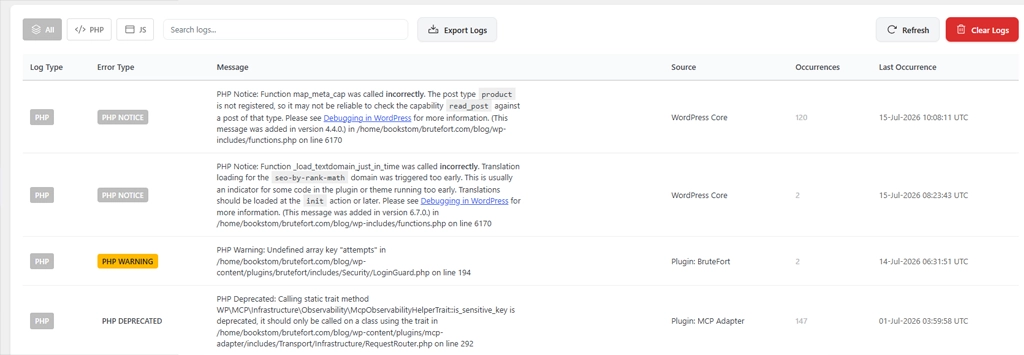
Instead of scrolling through a raw text file, you see a structured table you can act on immediately. Look for lines that reference plugin files. A PHP fatal error like:
PHP Fatal error: Cannot redeclare plugin_function() (previously declared in /wp-content/plugins/plugin-a/file.php:24) in /wp-content/plugins/plugin-b/file.php on line 18tells you exactly which two plugins are conflicting. Half the diagnostic work is done before you’ve touched a single plugin toggle.
If you want to check your logs without tinkering with code, you can use a simple error log viewer plugin like LogMate. It's very lightweight and only tracks errors on your site.Not all plugin conflicts produce PHP errors. Some surface as WordPress JavaScript errors instead — a slider that stops working, a tab interface that won’t open, or an admin panel element that doesn’t respond. These don’t appear in your PHP debug log at all.
Logmate’s JavaScript error capture handles this automatically.
Note: With the “Log JavaScript errors” toggle enabled, JS errors from visitor browsers are recorded server-side alongside your PHP errors. The most common JS conflict pattern is two plugins loading different versions of jQuery, producing a $ is not defined error that breaks every jQuery-dependent script on the page.


If the error log doesn’t name the plugin directly — or if you can’t access the log yet — the systematic approach is deactivation testing.
Start by deactivating all plugins except the one you suspect. If the problem disappears, reactivate plugins one at a time until it comes back. The last plugin you reactivated before the error returned is part of the conflict. Then test combinations to find which pairing specifically triggers it.
Warning: If you can’t access the WordPress admin because of a PHP fatal error locking you out, deactivate plugins via FTP by renaming the plugin’s folder inside /wp-content/plugins/. WordPress auto-deactivates any plugin whose folder it can’t find.
WordPress site errors after an update are a specific and very common version of plugin conflict. A plugin that worked fine on PHP 8.1 may throw deprecation warnings or fatal errors on PHP 8.2. A theme that worked with WordPress 6.4 may conflict with changes in 6.5. The fix is the same: check your error log first, identify the file throwing the error, and contact the plugin developer if the conflict is in their code.
Logmate’s System Info screen is useful here — it shows your current PHP version, WordPress version, active theme, and all active plugins in one view, making it easy to cross-reference against plugin compatibility documentation.

Start with your WordPress error log. PHP fatal errors and warnings almost always include the file path of the problem code, which tells you which plugin is involved. If the log isn’t helpful, use deactivation testing — disable all plugins, confirm the problem is gone, then reactivate one by one until it returns. The log-first approach is much faster when it names the file directly.
Yes. A PHP fatal error from a plugin conflict is one of the most common causes of the white screen of death in WordPress. The page fails to render because execution stops at the error. Enabling WP_DEBUG with WP_DEBUG_DISPLAY set to false — so errors go to the log rather than the page — is the fastest way to identify the cause without exposing error messages to visitors.
Yes. Logmate is free to install from the WordPress plugin repository. It includes the full log viewer for both PHP and JavaScript errors, the System Info screen, auto-refresh, log export, and automatic log retention and purge settings.
Contact the developer of the plugin that appears to be causing the conflict — the one whose code triggers the error — and provide the exact error message from your log. Most reputable plugin developers will fix genuine conflicts in a patch update. In the meantime, check if an older version of one of the plugins avoids the conflict while you wait for the fix.
Plugin conflicts are frustrating but almost always diagnosable. Your WordPress error log is the fastest path to the answer — and Logmate makes that log readable from inside your dashboard without needing FTP access or server credentials. Install it before the next conflict hits, so you’re ready when it does.
You might also like:

