Our Location
304 North Cardinal St.
Dorchester Center, MA 02124


You turned on WP_DEBUG to catch whatever’s breaking your site, and now cryptic PHP warnings are showing up right on the page — in front of every visitor. That’s a common first mistake, not a sign you’ve made things worse.
WP_DEBUG is actually controlled by four separate constants, and most guides only explain one of them. Here’s the concrete part: only one combination of settings is genuinely risky. Everything else is safe once you know what each constant does.
This guide breaks down all four constants, gives you a safe production configuration to copy, and shows you how to skip editing wp-config.php altogether.
Quick Answer: Turn on WP_DEBUG to catch PHP errors, but always set WP_DEBUG_DISPLAY to false so errors log quietly instead of showing on your live site. Pair it with WP_DEBUG_LOG to save errors to a file, then check that file with a tool like LogMate instead of editing wp-config.php every time.
WordPress’s debugging system is controlled by four constants, all set in wp-config.php. They work together. Misunderstanding what each one does is how sites end up exposing error messages to visitors.
This is the master switch. Setting it to true enables WordPress’s debugging mode, which tells PHP to report all errors instead of suppressing them. By itself, it doesn’t do anything visible — it just turns on error reporting. You still decide where those errors go.
define( 'WP_DEBUG', true );Set this to true and WordPress writes errors to a log file at /wp-content/debug.log. This is the setting you want on a live site. Errors get captured silently, with nothing shown to visitors. You can also set it to a file path instead of true to pick a custom log location — see our guide to finding the error log location on any host if the file isn’t where you expect.
define( 'WP_DEBUG_LOG', true );This controls whether errors print directly on the page. It defaults to true. That means if you enable WP_DEBUG without explicitly setting this to false, errors show to anyone visiting your site. On a production site, always set it to false explicitly.
define( 'WP_DEBUG_DISPLAY', false );Warning: WP_DEBUG_DISPLAY defaults to true. If you enable WP_DEBUG without setting this to false, PHP errors containing your server paths and file structure become visible to every visitor.
Separate from the PHP debugging system, SCRIPT_DEBUG tells WordPress to load the full, unminified versions of its own JavaScript and CSS files instead of the compressed versions it normally serves. That matters when you’re diagnosing JavaScript errors. Minified files produce cryptic error messages; the originals give you readable file names and line numbers.
define( 'SCRIPT_DEBUG', true );For a live site where you want errors logged but not displayed, use this combination in wp-config.php, above the “stop editing” comment:
define( 'WP_DEBUG', true );
define( 'WP_DEBUG_LOG', true );
define( 'WP_DEBUG_DISPLAY', false );
@ini_set( 'display_errors', 0 );
Pro Tip: The @ini_set( 'display_errors', 0 ) line is a belt-and-suspenders measure. It suppresses display errors at the PHP level in case a plugin or theme overrides WP_DEBUG_DISPLAY programmatically.
LogMate handles most of this from inside your WordPress dashboard. Instead of editing wp-config.php every time you need to check errors, LogMate reads your existing log file and presents it in a searchable, filterable interface.
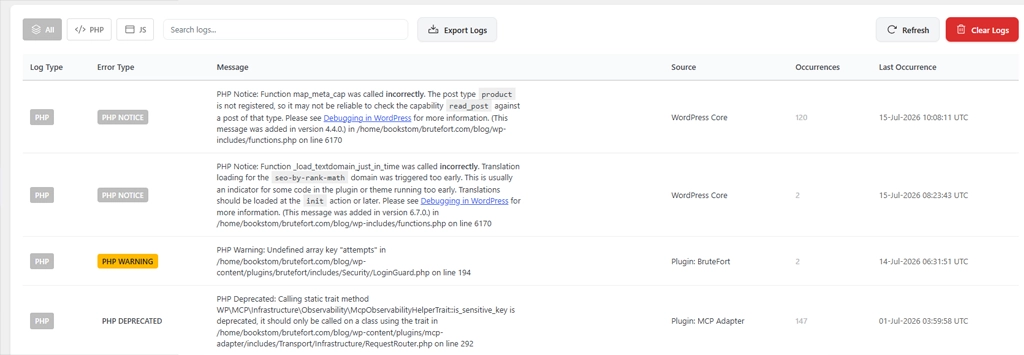
The Settings screen inside LogMate also lets you toggle SCRIPT_DEBUG and auto-refresh directly — no file editing needed.

LogMate also captures JavaScript errors from visitor browsers and logs them server-side alongside PHP errors — something the native WordPress debug system doesn’t do at all. You get one place to see both PHP and JS errors, with occurrence counts, timestamps, and source file information.
Marginally. PHP error checking adds a small overhead to every request, and writing to the log file takes a tiny amount of I/O. On most sites the impact is imperceptible. It becomes noticeable only on sites generating thousands of log entries per hour — there, the log write volume is the real concern, not the debug overhead itself.
Yes, as long as WP_DEBUG_DISPLAY is explicitly set to false. The log file will accumulate entries over time, so you’ll want a retention strategy. Either check and clear it regularly, or use LogMate’s automatic log purge to keep only the last N days of entries.
A rapidly growing log file almost always means a plugin or theme is generating repeated errors on every page load — often thousands of identical notices per day. Fix the source rather than just clearing the file. LogMate’s log viewer groups identical errors by occurrence count, so you can spot the high-volume culprit at a glance, then set automatic retention to keep the file size manageable while you investigate. If you’d rather manage this manually, see our guide on managing and purging an oversized log file.
Site Health checks your site’s configuration and flags potential issues proactively — things like outdated PHP versions, insecure settings, or inactive plugins. WP_DEBUG captures runtime errors that occur during actual page execution. They’re complementary: Site Health flags configuration problems, while WP_DEBUG captures what’s actually breaking during live operation.
WP_DEBUG is straightforward once you understand what each constant does. The only dangerous combination is WP_DEBUG true with WP_DEBUG_DISPLAY also true on a live site — everything else is safe. LogMate makes reading those logs significantly easier by bringing them into your WordPress dashboard and adding JavaScript error capture on top.
You might also like:

