Our Location
304 North Cardinal St.
Dorchester Center, MA 02124


Something on your WordPress site just broke, and you need to check the error log — but you don’t actually know where it lives. That’s a common problem. The default location is simple, but hosting setups, custom configs, and security plugins can move it without any obvious sign of where it ended up.
It happens on nearly every host, from cheap shared plans to managed WordPress platforms, each with its own quirks. This guide covers every place the WordPress error log can live, how to find it on any hosting environment, and how to stop hunting for it altogether.
Quick Answer: By default, WordPress writes errors to /wp-content/debug.log once WP_DEBUG and WP_DEBUG_LOG are both enabled. Hosts and plugins can move this to a custom path, though.
If the file isn’t there, check your wp-config.php for a custom WP_DEBUG_LOG path, or use LogMate’s System Info screen — it shows the exact file path in use on your specific site.
When WP_DEBUG and WP_DEBUG_LOG are both set to true in wp-config.php, WordPress writes errors to:
/wp-content/debug.logThis path is relative to your WordPress installation root. On most shared hosting setups, the full server path looks something like /home/username/public_html/wp-content/debug.log. The exact structure depends on your host’s directory layout.
The file is plain text and opens in any text editor. Note: it doesn’t exist until the first error is logged after enabling WP_DEBUG — WordPress creates it on demand, not in advance.
The default path can be changed. When WP_DEBUG_LOG is set to a file path string instead of true, WordPress writes the log to that custom location:
define( 'WP_DEBUG_LOG', '/custom/path/to/my-debug.log' );Some plugins and hosting environments do this automatically. It keeps the log outside the web root, making it inaccessible via a public URL, or stores it alongside other server logs in a standardized location. So if you’ve enabled WP_DEBUG but can’t find the log at /wp-content/debug.log, a custom path is likely the reason.

Different hosting types handle WordPress debug logging differently:
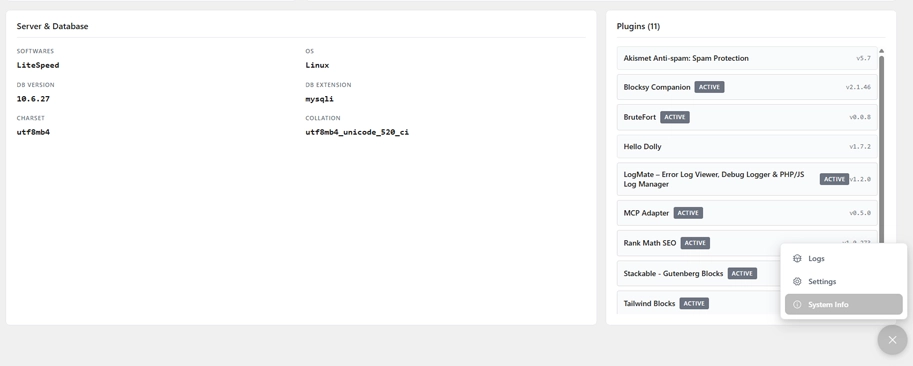
/public_html/wp-content/ and open the file directly. Some cPanel setups also have a separate server-level error log under Metrics → Error Log, which is separate from the WordPress debug log.wp-config.php. Kinsta, for example, provides a WordPress error log viewer in MyKinsta. Check your host’s documentation rather than assuming the default path.php.ini to write server-level PHP errors to a separate file, distinct from the WordPress debug log.logs/ directory rather than inside WordPress itself.Rather than navigating every possible location, LogMate’s System Info screen shows the exact file paths for both your PHP debug log and JavaScript log on your specific installation. Go to LogMate → System Info. The Debug Logs section lists the PHP log path and JS log path your site actually uses, plus the current file size of each. That eliminates the guesswork regardless of your hosting environment or configuration.
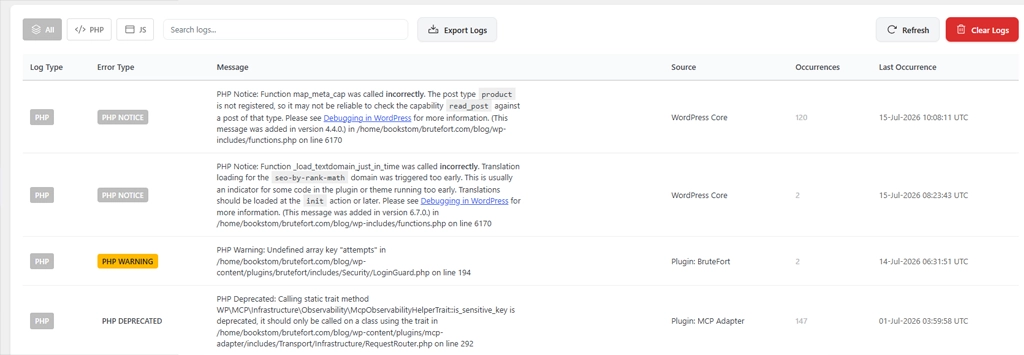
LogMate also makes reading the log unnecessary from the server — once it knows the log path, it reads and displays the contents inside the WordPress admin. Errors are organized in a searchable table, with PHP and JavaScript errors separated, sortable by occurrence count, and exportable when you need to share with a developer.
The default location at /wp-content/debug.log is within the web root. That means it could potentially be accessed at yourdomain.com/wp-content/debug.log if not protected. Most WordPress configurations block direct file access to this path via .htaccess, but it’s worth verifying that the URL returns a 403 or 404 rather than the file contents.
Important: To secure it explicitly, add this to your .htaccess file:
<Files debug.log>
    Order allow,deny
    Deny from all
</Files>
Alternatively, use a custom log path outside the web root by setting WP_DEBUG_LOG to an absolute path above your public_html directory. LogMate stores its own log files at randomized, non-guessable paths within the uploads directory for exactly this reason.
WordPress only creates the debug log file when the first error is written to it after enabling WP_DEBUG and WP_DEBUG_LOG. If both constants are active and no log file exists, either no errors have occurred since enabling debug mode, or the file is being written to a different path than you’re checking. Trigger a known error (loading a page with a broken plugin) to force the file to be created, then look for it.
Yes. Most hosting environments maintain their own PHP and server error logs separately from the WordPress debug log. These capture errors that occur before WordPress fully loads — useful for diagnosing white screens that happen at the server level. Check your hosting control panel for an “Error Log” viewer, or ask your host where their server logs are kept.
The WP_DEBUG_LOG constant in wp-config.php is the standard way to set a custom path. Some managed hosts offer this as a dashboard setting. LogMate abstracts the log location by finding and reading the file wherever it is, so even if the path changes, LogMate’s Logs screen continues to show the correct file.
No. The write location doesn’t change how much data gets logged or how often. Performance concerns come from log volume, not file location — a debug log with thousands of repeated entries per hour is the thing to watch, regardless of where the file sits on disk.
The WordPress error log location varies more than most documentation suggests. The fastest way to find it on any site is LogMate’s System Info screen, which shows the exact path currently in use. From there, LogMate reads the file and presents it in the dashboard, so the location becomes irrelevant for day-to-day error monitoring.
You might also like:

