Our Location
304 North Cardinal St.
Dorchester Center, MA 02124


Your debug.log file just hit 500MB and your host is asking questions. It’s not something you broke — WordPress never rotates or trims this file on its own.
A single deprecated function call that fires on every page load can add thousands of identical lines to the log in a single day. This guide shows you how to find what’s filling it up, purge it safely, and stop it from happening again.
Quick Answer: Find the plugin or theme causing repeated errors first, then purge the log through LogMate (or delete debug.log via FTP). Finally, turn on LogMate’s retention setting so old entries clear automatically from now on.
The most common cause is a plugin or theme generating the same PHP error, warning, or deprecation notice on every page load. WordPress appends to the log rather than replacing it, so there’s no built-in size limit or rotation.
Other contributors include high-traffic sites where even rare errors add up fast, WooCommerce or membership sites with heavy user activity, and unmanaged JavaScript error logging.
Before purging, identify the source. A log file that’s gigabytes large is almost always dominated by a handful of repeated errors. Clear it without fixing the cause, and it’ll be just as large again in a few days.
LogMate makes this easy. Its Logs screen groups identical errors by occurrence count, so the most frequent entries surface first. An error that’s fired 50,000 times stands out immediately next to one that happened once. The source column tells you exactly which plugin or theme is responsible.
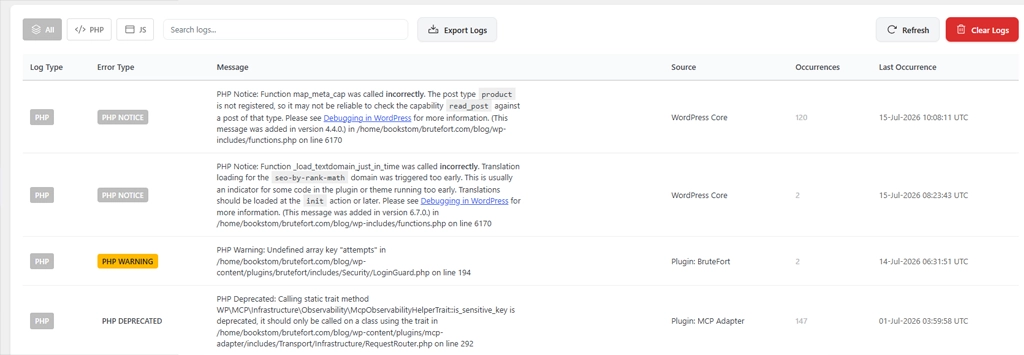
Fix that one issue — or disable the offending plugin temporarily — and the log’s growth rate drops fast.
Pro Tip: Reading the raw file directly? Run sort debug.log | uniq -c | sort -rn | head -20 in a terminal. It shows the 20 most frequent lines, which is usually enough to spot the culprit.
Once you know the cause, clear the accumulated entries. There are two ways to do this.
Via LogMate: Open the LogMate settings screen from the Logs page. The Purge Log Type dropdown lets you purge all logs, PHP logs only, or JS logs only. You can also set a date threshold instead of clearing everything.
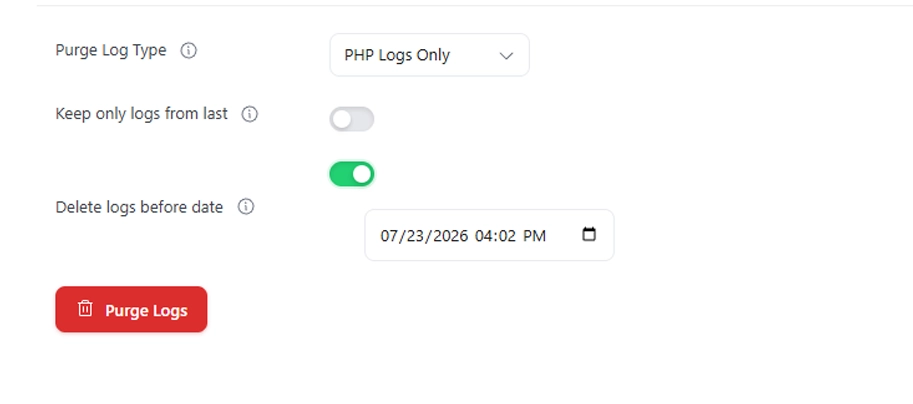
Click Purge Logs and the entries are removed immediately. No server access needed.
Via FTP or file manager: Connect to your server, navigate to /wp-content/, and delete debug.log entirely, or open it and clear its contents. This is the nuclear option — it removes everything regardless of date or type.
Manual purging works but isn’t a long-term fix. LogMate’s retention settings automate it. In the settings panel, enable Keep only logs from last and set the number of days — the default is 7.
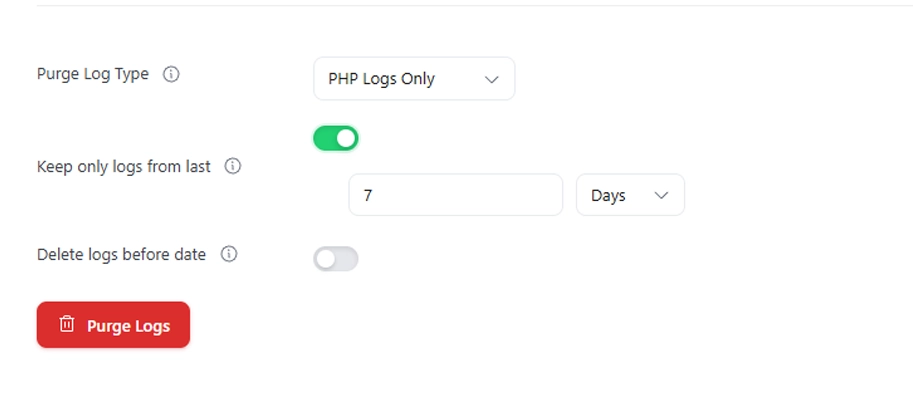
With this active, LogMate removes entries older than your window on a schedule — no manual intervention needed. For most sites, 7 days is plenty; errors that matter get noticed and fixed within that window. Doing periodic audits instead of active monitoring? Extend it to 14 or 30 days for a longer history.
If your log is consistently generating huge volumes of entries and you’re not actively using it for debugging, it’s worth asking whether WP_DEBUG needs to stay on in production at all. Some sites run it permanently for visibility; others only enable it when investigating a specific issue.
A middle-ground approach: keep WP_DEBUG and WP_DEBUG_LOG on, but set LogMate’s retention to purge aggressively (3–7 days) so the file stays small. You still get ongoing visibility into active errors without the disk space problem. Important: keep WP_DEBUG_DISPLAY set to false on a live site no matter which approach you choose.
There’s no hard limit, but a file over 100MB is almost certainly dominated by repeated identical errors from one plugin or theme. At that size it also becomes slow to open and search. Anything over 1GB is actively problematic for disk quota. Treat that size as a signal something’s generating errors at an abnormal rate, not just a storage issue.
No. Deleting or clearing the file removes historical entries but doesn’t affect your site’s functionality. WordPress creates a new empty debug.log automatically the next time an error occurs. You do lose the history of past errors, which is why finding the source before purging is the smarter order of operations.
Indirectly, yes. Appending to a very large file takes marginally longer than appending to a small one. On a shared host with limited disk quota, a large log can also push you toward your storage limit, and some hosts respond by throttling writes or suspending accounts. The bigger performance concern is usually whatever’s generating the errors in the first place.
LogMate’s purge removes entries from the log file itself — the actual debug.log on disk — not from a database table. After a purge, the file is truncated to only the entries within your retention window, or emptied entirely for a full purge. The file size on your server drops accordingly.
A bloated debug log is a symptom, not just a storage problem. Fix the source of the repeated errors, set up automatic retention, and you’ll never deal with a multi-gigabyte log file again. LogMate handles both the diagnosis — surfacing the high-frequency errors causing the bloat — and the retention management, right from your WordPress dashboard.
You might also like:

